Uploading Pictures
You can upload photos, audio, video and documents to your post. For now we’ll focus on uploading photos.
- Place the cursor in the message text box at the point where you want the photo to appear.
- Click on the Add an Image icon found between the title text box and the message text box. It is the first icon to the right of the words “Upload/Insert.”

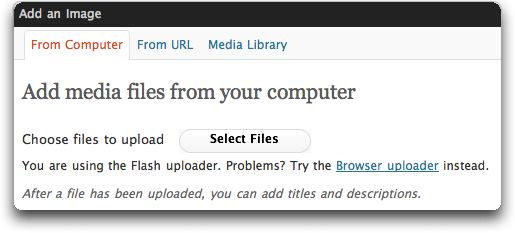
- Click on the Select Files button to select files from your computer.
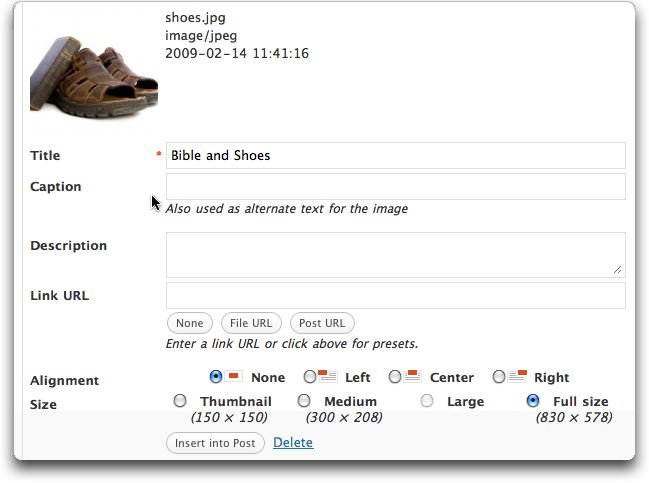
- Once the photo is uploaded, you can add Title, Caption and Description if you like.
- You can also choose Alignment and Size.
- Then click on Insert into Post. It will be inserted where you have the cursor in the message text box.
- You can upload more than one file at time.
- You can insert your photos one at a time or as a Gallery.

Click on Gallery and you will see the following:
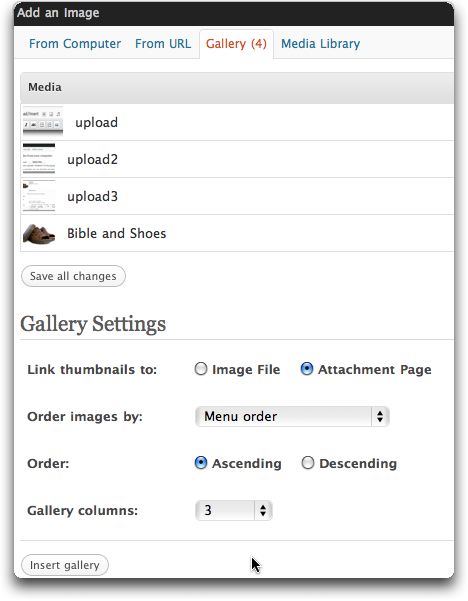
You can set various options for the Gallery, and then click Insert Gallery. All the photos in the Gallery will be inserted, usually as a thumbnail. When people click on the thumbnail the photo will enlarge. If they click on this enlarged version, the photo may enlarge again, depending on how large the uploaded file is. - For an update on uploading and editing images, check out this post: http://family.waldecker.net/blog/?p=4160

{ 0 comments… add one now }