How to Navigate this Site
This site is for the extended Waldecker clan. The following is intended to help navigate the site:
1. In the upper left corner is a photograph related to the family. Every time you click on something the picture changes. If you have pictures you’d like to include, please let me know.
2. Below the picture is a search box. This will search the site for posts with the key words you insert.
3.Below the search box is the Navigation section. Here you can click on the New Post button, log out, or go to the Site Admin section. Normally you would not need to use this.
4. Below the Navigation section is the Pages section. Underneath the title are “pages” you can click on. Whereas “posts” are more time oriented, “pages” are more permanent parts of the site. This page is one of those.
5. Below the Pages section is the Links section. Underneath this title are links to other websites that might be of interest.
6. Below the Links section is the Recent Comments section. Here you can see the latest comments that have been made. If you click on the name of the author of the comment you will be taken to the full comment.
7. Below the Recent Comments section is the Archives section. You can click on the month and the day for which you want to view posts. It will also show the days in the month preceding the day you choose.
8. Below the Archives section is a list of who has recently been on the blog. The topmost person has been on most recently. If you hover the cursor over the name of the person you will see how long ago they were online.
9. At the bottom of the right column is a listing of the categories that already have messages posted to them. Many messages belong to more than one category. When you click on one of the categories, you will see all the posts that belong to that category.
10. At the top of the right column you will see the messages that have been posted so far. Each post is visible in its shortened form: A large title, a line indicating the categories to which the post belongs, and a short description of the content. If you click on the Title of the post, it will open to its full length and you can read the entire post.
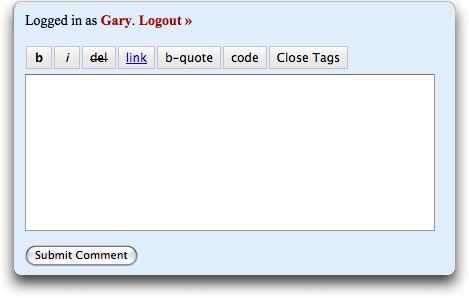
11. At the bottom of each full length post, you will see a box (if you are logged in) in which you can respond to the post with a “comment.” You will see 8 groups of letters across the top of the box. These are to help you format the text of the comment if you wish to do so. It is not necessary to format it. You format the text by selecting the text you want to format, and then clicking on the corresponding button. The following is a list of what each formatting option does:
- b = bold text
- i = italics text
- del = Strikes through the selected text.
- link = make a hyperlink. You’ll need to know the URL of the place you want to link.
- b-quote = distinguish quoted or cited material in an indented block of text. For longer quotes.
- code = Turns the text into courier. I can’t figure out why anyone would want to do this.
- Close Tags = used only if you are entering the tags manually. If you are, you already know what this means. Otherwise you have no need to use it.
When you leave the main page, a “Return” Title appears in the Navigation section. Click on it to return to the main page of the site.
If you have any questions, please let me know: gary@waldecker.net.
{ 0 comments… add one now }