 How about establishing this website as a kind of virtual family meeting place just for the Waldecker clan? Here you can write down your thoughts and feelings in what are called “posts.” Other people can do the same. You can also comment on the posts of others, and they can comment on yours.
It’s a way to keep up to date on what is happening among us. Of course, some of us have official prayer letters we send out to a wider audience. But this would be more intimate–just for the family. We would password protect the site so that what we share is just for us.
We can include things like news, prayer requests, insights, ideas, suggestions, or whatever you want. If we all commit ourselves to taking 10 minutes a day–or even every other day–or even every third day–to share something, I think we will feel much more connected. Let me know what you think about this either by making a comment (see the box below) or by making your own post.
***
To comment on this post, type in the box below and them submit it.
To create a new post, you first have to register. The register link is on the lower left. If it isn’t there, click on the “Return to Home” link on the left.
To create a new post click on the Site Admin link at the bottom left (it shows up after you register). This will take you to the Administration section. Click on the Write tab, and then on the Write Post tab. Type in a title. Type in an excerpt if you want. This will show up as a summary until someone opens the full post by clicking on the title. I usually repeat the excerpt along with the post itself, which you write in the large box. (The excerpt does not show up when you open the post). If you don’t use the excerpt box, the first few lines of your post will show up on your unopened post.
Choose a category for the post. These are to the right of the screen as you write the post. You can use more than one category. You can also create new categories (under the Manage option of the admin screen).
Then click on the Publish button.
Gary
{ 4 comments… read them below or add one }
Here is a comment on the above post. The strange-looking tabs you will see on the comments box are to help you format you text. For example, “str” means “bold.” Select the text you want to make bold and then click on the “str” tab. “Em” means italics. The “link” tab links a word you select with a web address.
The others you probably wouldn’t use.
Gary
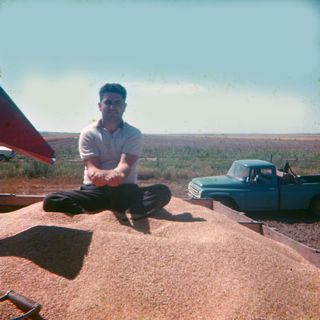
You can also include pictures with your post. You can see I included a picture of myself in the first post. To do this you first have to upload the picture. To upload, go to the Upload tab in the admin screen (Site Admin). Click on the Browse tab and select the picture you want to upload. (To give you an idea of picture size, the picture I uploaded is less than 100 pixels wide. The pictures in the upper left corner are 315 pixels wide.) Then click on the Upload button.
After you upload the picture, you can include it in your post. To do this, look below the post box on the admin screen (Write tab, the Write Post tab). You will see a section called “Image to Post.” Here write in the name of the file you uploaded, either in the Left Image box or in the Right Image box (depending on whether you want it to show up on the left side or the right side). Make sure you type the name of the file exactly as it is (case-sensitive). Then click Save or Publish on the post page. That’s it. Go back to the blog page and it should be there.
There is another way to include images in your post. First upload the picture as before. At any point in the post you can click on the “img” tab. You will be asked to put in the web address of the image. This is the address:
http://family.waldecker.net/wordpress/wp-images/media/name-of-file.jpg (whatever the file name is, of course. But the name of the file is case sensitive, so type it here the same way it was uploaded.)
Now that I have updated the blogsite, pictures and documents and uploaded differently. It’s all done on the Write page. See the explanation here: