Thankfully, our website here has been very secure. It is password protected so that our family information remains private and not accessible to the world. No one has every broken into our site. Although it is unlikely that anyone would ever break in, I want to implement some things that will make it even less likely. One of those things involves making sure everyone who has an account on our site has a “good” and “strong” password. So I would like to ask everyone to change their password, making sure it is a strong one. Our website is only as secure as its weakest password.
The website itself will tell you whether or not your new password is strong as you type it in. A strong password is usually at least 8 characters long, and is made up of a combination of uppercase letters, lowercase letters, numbers and symbols (like &*^%$). Here’s how you do it:
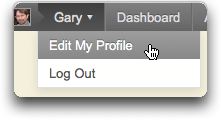
- Place the cursor over your username that’s found in the upper left hand corner of the blog in the grey strip.
- As you do, a submenu will pop up. Click on the “Edit My Profile” submenu. It looks like this:
- Scroll down to the bottom of this page and you will see a place to insert a new password–twice.It looks like this:
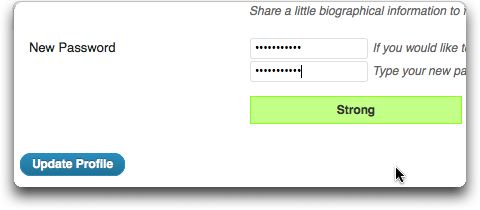
- Insert the new password and you will see as you type whether or not it is “strong”. In other words, the system will tell you whether or not it is strong enough.
- Once you get a strong password, click on the “Update Profile” button.
- If your browser had memorized your previous password, it should ask you, when you create the new one, if you want it to change the old one for the new one. Allow it to memorize the new one.
Please let me know through a comment when you have done this step.
If you would like me to do it for you, just let me know and I will be glad to do it.
Sorry for this inconvenience, but it’s good practice and will make our site more secure.
{ 11 comments… read them below or add one }
I updated Eric’s account for him. No one knows his email address or if he even has one. I also changed his email address to one of mine so we won’t be getting a bounce message every time we make a post. (If I delete him from the site, all his posts and comments with either be deleted, or I’d have to attribute them to someone else)
I changed mine.
completed
done
I changed mine
Mine is changed!
I see I made some errors in my instructions. It’s the upper left, not the upper right. (Although there’s also a similar link on the upper right corner). And it says “Edit My Profile” instead of “Update Your Profile.” Sorry for the confusion.
Mine is changed
I did it!
I followed all the instructions, but it didn’t ask about memorizing my password. My previous password was saved by the site, so once I log out I don’t know whether or not I’ll be able to get back in.
Don’t forget to update your password. If you’d like me to do it for you, let me know.